
Introduction
A virtual machine (VM) is a software-based emulation of a physical computer. It allows you to run an operating system (called the guest OS) on top of your existing system (called the host OS) without affecting your main computer. Essentially, it’s like having a computer inside your computer, giving you the freedom to experiment safely.
Virtual machines are incredibly useful for testing new software, learning different operating systems, and running multiple OSes simultaneously. Whether you want to try out Linux on a Windows PC, test software updates without risking your main system, or explore new environments for development, VMs provide a flexible and secure solution.
What is a Virtual Machine?
A virtual machine (VM) is a software program that simulates a physical computer. It runs an operating system (guest OS) inside another operating system (host OS) on the same computer. This means you can use multiple operating systems on a single device without needing separate hardware for each one.
Key Features of a Virtual Machine:
- Isolation: Each VM runs independently, so any changes or errors inside a VM do not affect your main system.
- Flexibility: You can run different operating systems like Windows, Linux, or macOS on the same computer.
- Portability: VMs can be easily moved or copied to another device.
Popular Virtual Machine Software:
- VirtualBox: Free, open-source, and works on Windows, macOS, and Linux.
- VMware Workstation: Free for personal use, known for stability and performance.
- Hyper-V: Built into Windows Pro and Enterprise editions, no extra installation needed.
Virtual machines are widely used by developers, IT professionals, and students because they provide a safe and controlled environment for learning, testing, and experimenting with software.
Why Use a Virtual Machine?
Virtual machines are more than just a tech curiosity—they are powerful tools that provide flexibility, safety, and efficiency. Here are some key reasons why using a VM is important:
- Safe Testing: Run new software or updates in a virtual environment without risking your main system.
- Learning and Experimentation: Practice using different operating systems like Linux or older versions of Windows.
- Software Compatibility: Use applications that may not be supported on your main OS.
- Isolation: Keep projects or experiments separate to prevent conflicts and errors.
- Cost-Effective: No need to buy additional hardware to test multiple operating systems.
- Portability: Easily move or copy your virtual machine to another computer if needed.
By leveraging virtual machines, you can explore, learn, and experiment without fear of damaging your primary computer or losing data.
Step-by-Step Guide to Installing a Virtual Machine
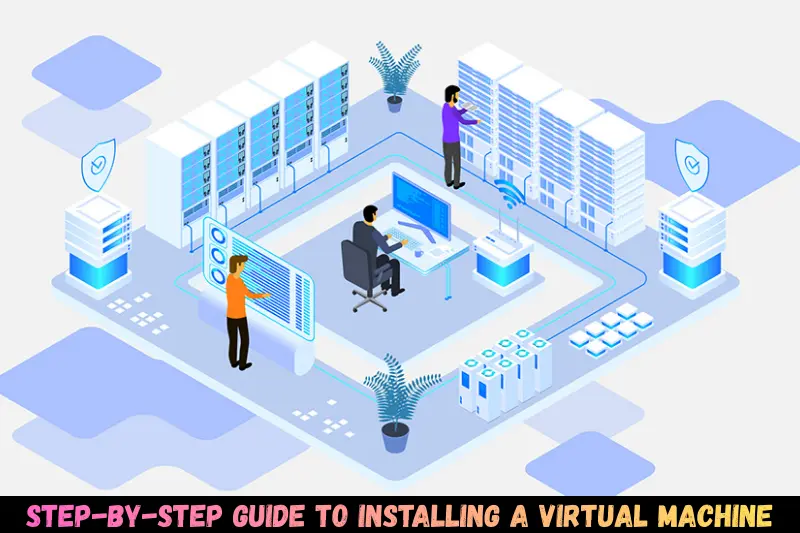
Installing a virtual machine may sound complicated, but with the right steps, it’s simple and straightforward. Below is a detailed guide using VirtualBox as an example, one of the most popular and free VM software.
Step 1: Choose Your Virtual Machine Software
First, decide which virtual machine software to use. Popular options include:
- VirtualBox: Free, open-source, works on Windows, macOS, and Linux.
- VMware Workstation Player: Free for personal use, highly stable.
- Hyper-V: Built into Windows Pro and Enterprise editions.
For beginners, VirtualBox is highly recommended because it’s easy to use and completely free.
Step 2: Download and Install VirtualBox
- Visit the VirtualBox official website.
- Click Download VirtualBox for your operating system.
- Run the installer and follow the on-screen instructions.
- Once installed, launch VirtualBox to begin creating your virtual machine.
Step 3: Download the Operating System (Guest OS)
Before creating a VM, you need the OS installation file (ISO):
- Windows: Download from the Microsoft website.
- Linux: Popular distributions include Ubuntu, Fedora, or Debian (download from their official websites).
Save the ISO file in a location that’s easy to access.
Step 4: Create a New Virtual Machine
- Open VirtualBox and click New.
- Enter a name for your VM (e.g., “Ubuntu VM”) and select the OS type and version.
- Allocate RAM (memory)—at least 2GB is recommended for most operating systems.
Create a virtual hard disk:
- Type: VDI (VirtualBox Disk Image)
- Storage: Dynamically allocated
- Size: Minimum 20GB for most modern OSes
Step 5: Configure the Virtual Machine
- Select your VM and click Settings.
- Go to Storage, click the empty CD icon, and select your downloaded ISO file.
- Optionally, adjust other settings under System, Display, and Network as needed.
Step 6: Start the Virtual Machine
- Click Start to boot the VM.
- The VM will boot from the ISO file. Follow the on-screen instructions to install the operating system.
- After installation, remove the ISO from the virtual drive to prevent booting from it again.
Step 7: Install VirtualBox Guest Additions (Optional but Recommended)
Guest Additions improve the VM’s performance and provide extra features:
- Shared folders between host and guest OS
- Better graphics and screen resolution
- Seamless mouse integration
Installation:
- Start your VM.
- Go to Devices → Insert Guest Additions CD Image.
- Follow the instructions inside the guest OS to complete the installation.
Tips for a Smooth Virtual Machine Experience
To make the most out of your virtual machine and ensure it runs efficiently, follow these tips:
- Allocate Enough Resources: Ensure your VM has enough RAM and disk space to run smoothly. Too little memory can slow it down.
- Take Snapshots: Save the current state of your VM so you can easily revert if something goes wrong.
- Keep Software Updated: Regularly update VirtualBox and guest OS for improved performance and security.
- Use Shared Folders Wisely: Share only necessary folders between host and guest OS to maintain security.
- Monitor Resource Usage: Keep an eye on CPU and RAM usage to avoid overloading your computer.
Conclusion
Installing a virtual machine is a simple yet powerful way to explore new operating systems, test software, and experiment in a safe, isolated environment. Whether you’re a student, developer, or tech enthusiast, mastering VMs allows you to learn and innovate without risking your main system.
With VirtualBox or any other VM software, you can now create multiple virtual environments, improve your technical skills, and enjoy the flexibility of running different operating systems—all on a single computer.
Frequently Asked Questions (FAQs)
Can I run multiple virtual machines at the same time?
Yes, you can, but make sure your computer has enough RAM and CPU resources to handle multiple VMs simultaneously.
Will a virtual machine slow down my computer?
A VM uses some of your computer’s resources, but with proper allocation of RAM and CPU, the impact is minimal.
Can I use VirtualBox on macOS?
Yes, VirtualBox works on Windows, macOS, and Linux, making it highly versatile.
Is VirtualBox free?
Yes, VirtualBox is completely free and open-source.
Can I transfer my virtual machine to another computer?
Absolutely! You can copy the VM file and run it on another device with compatible VM software.
Do I need to install Guest Additions?
It’s optional, but highly recommended as it improves performance, screen resolution, and usability.